


01What it is
A board is one interior direction, for example a japandi bathroom. It has a name, a style, a palette and a description of the direction. On the list it appears as a collage of its first four photos with a palette strip underneath.
Board items have a type: Photo, Material, Furniture, Lighting, Colour or Detail. For each item you record the brand, product code, supplier and product link.
You pin a board to a project room. When pinning you decide whether the client sees it in the portal. A board the client can see cannot be deleted until you hide or unpin it.
- PALETTE
- Colours written as #rrggbb, separated by commas, up to eight.
- LIBRARY
- One board can be pinned to many rooms.
- PORTAL
- A board shown to the client next to the room.
02What it is for
Direction before decisions
The client sees the style of the interior before choosing options.
The team looks the same way
A board on the room shows the crew the intended result.
The studio's library
A direction built once comes back in later projects.
Where to get an item
Brand, product code, supplier and link on every item.
03Main options
Inspiration is a library of boards, the board form and the board card with its items.
All the studio's boards
Tiles: boards, items, rooms with a board, shown to clients.
- A collage of four photos and a palette strip
- Style filter and search
- The number of items and rooms on each board
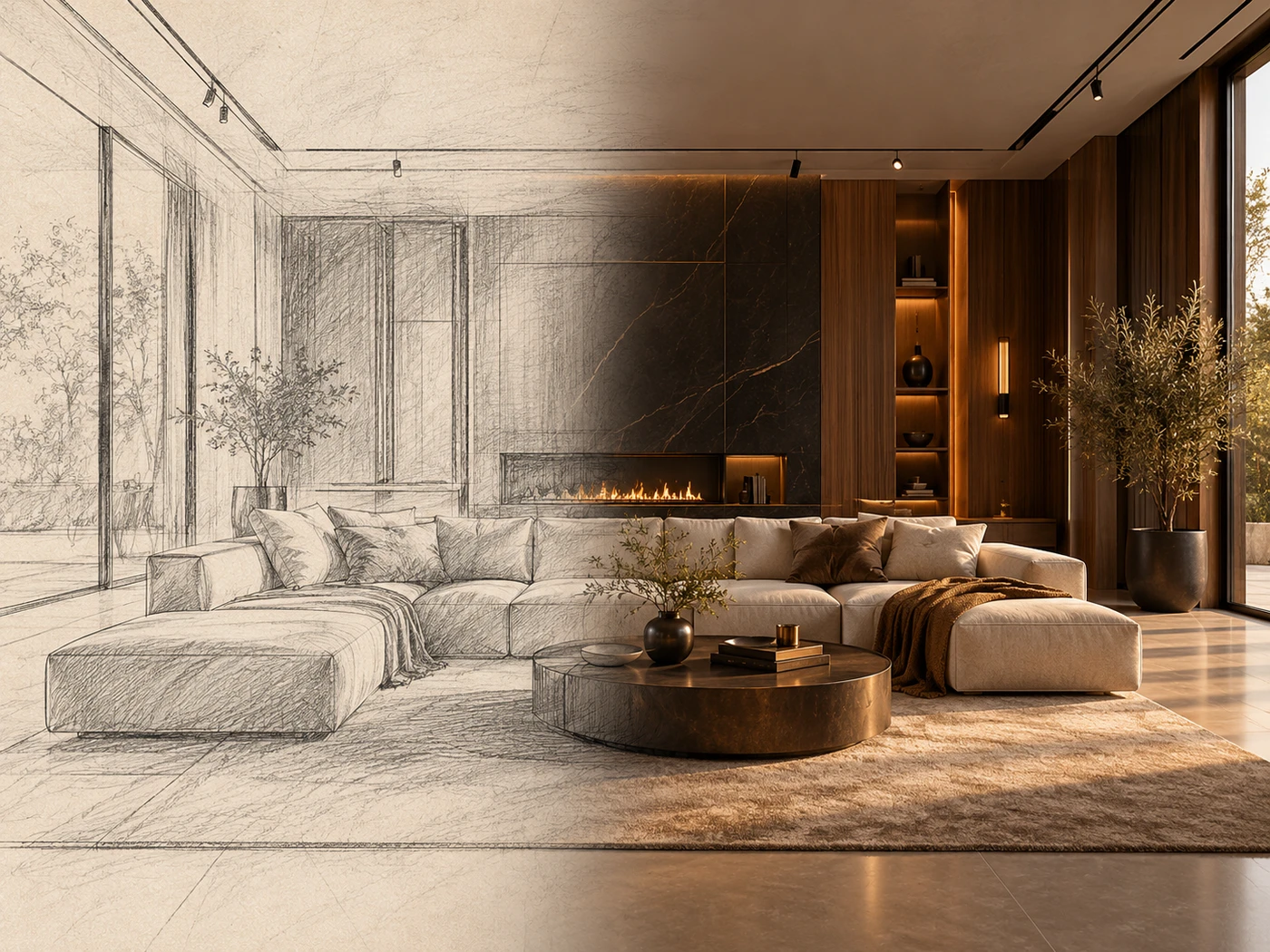
Style, palette and direction
You add items on the board card.
- Name, for example “Japandi bathroom”
- Style, for example japandi, loft, classic
- Colour palette and a description of the direction
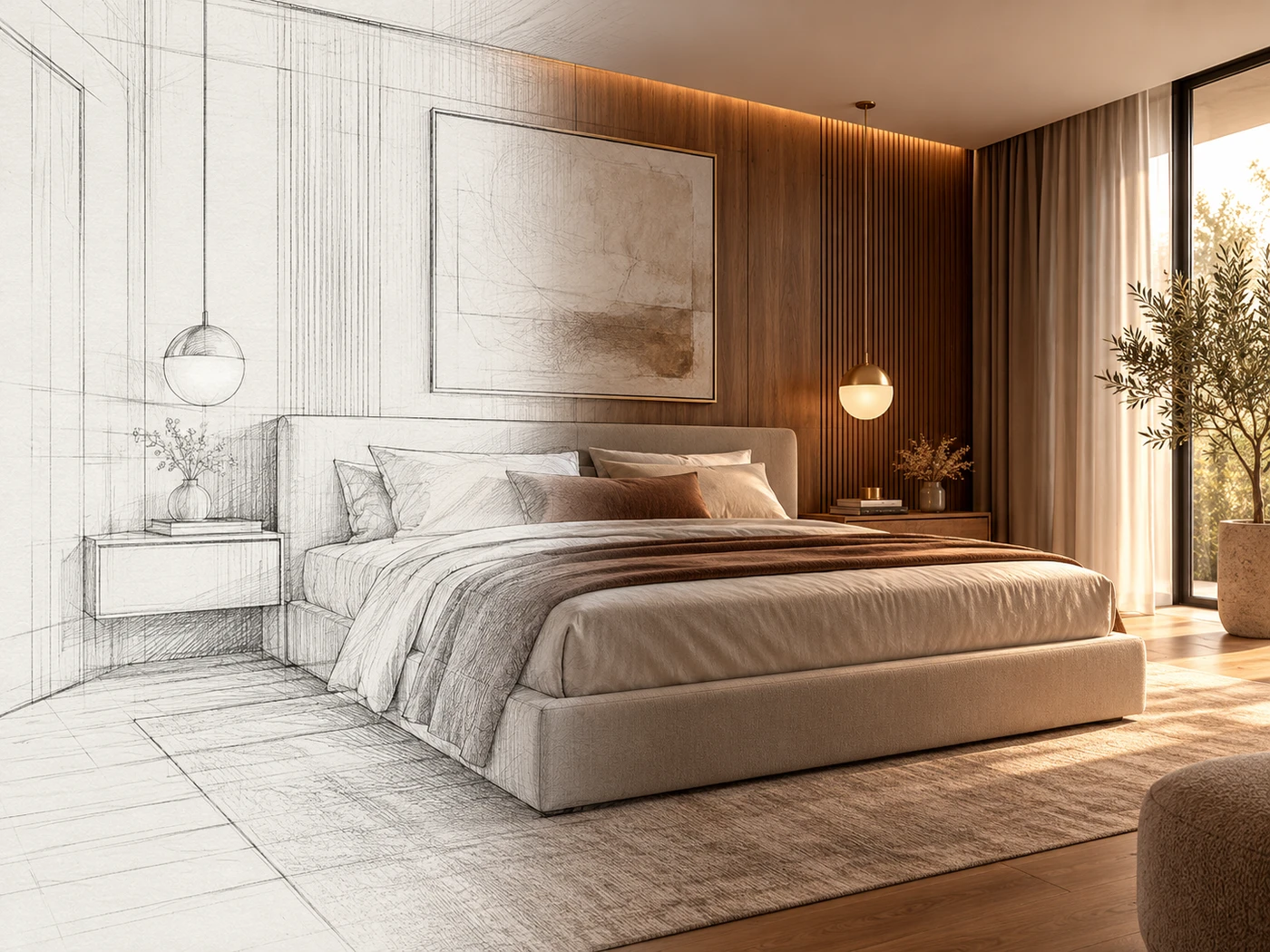
What makes up the direction
Photos, materials, furniture, lighting, colours and details.
- Type, name, photo and description
- Brand, product code, supplier and link
- A Colour item has a tile in its own colour
04Tasks step by step
- STEP 1Open Modules › Client and decisions › Inspiration and choose New board.
- STEP 2Enter the name, style and palette, for example #e8e1d6, #8a7b6a.
- STEP 3On the board card choose Add board item and add photos, materials and furniture.
- STEP 1On the board card choose Pin to a room.
- STEP 2Choose a project room and set the board to be visible to the client in the portal.
- STEP 3In the Rooms tab you can later hide it from the client or unpin it.
05Actions
The most common tasks around inspiration boards.
New board
Style, palette and interior items.
Add board item
A photo, material, furniture, colour or detail.
Pin to a room
The board on a project room.
Show to client
The board in the client portal.
06What it connects to
Choose a module to see what a board connects to.
Decision centre
You pick options for the client's decisions from the board's direction.
Go to the topicDecision centreProject gallery
You pin a board to a project room.
Go to the topicProject gallerySuppliers
A board item can point at a supplier from your records.
Go to the topicSuppliers