


01What it is
The daily dashboard shows what is happening in your interior projects today: which projects are in progress, which decisions you are waiting for from clients, how many issues are open and who is on site today.
The dashboard only shows. Each tile has the same number as the list below it, and each row opens the project, selection, task or issue where you deal with the matter.
A new company sees the First steps panel: an employee, a customer and a catalogue item. The panel disappears on its own once everything is in place.
- TODAY ON ONE SCREEN
- Projects, decisions, issues, tasks and people on site.
- 14-DAY TREND
- Issues, attendance and approved decisions over time.
- BUDGET
- People with access to finance see the budget of projects in progress.
02What it is for
Morning briefing
In a minute you know which projects are finishing, what is waiting for the client and what is overdue.
Decisions under control
The Waiting for the client panel lists selections awaiting a decision or with a change requested, nearest deadline first.
Risks in good time
Risks and blockers are open issues that threaten to delay the schedule.
Budget in one tile
The budget of projects in progress and how much of it is already used.
03Main options
The dashboard is a row of number tiles and a grid of panels. Below are the four most important parts.
The key numbers of the day
A row of tiles above the panels, some with a trend line for the last 14 days.
- Projects in progress and the number of all open projects
- Awaiting decision: client selections and in how many projects
- Open issues compared with 7 days ago
- On site today: people with confirmed attendance
- Budget in progress and how much is used (with access to finance)
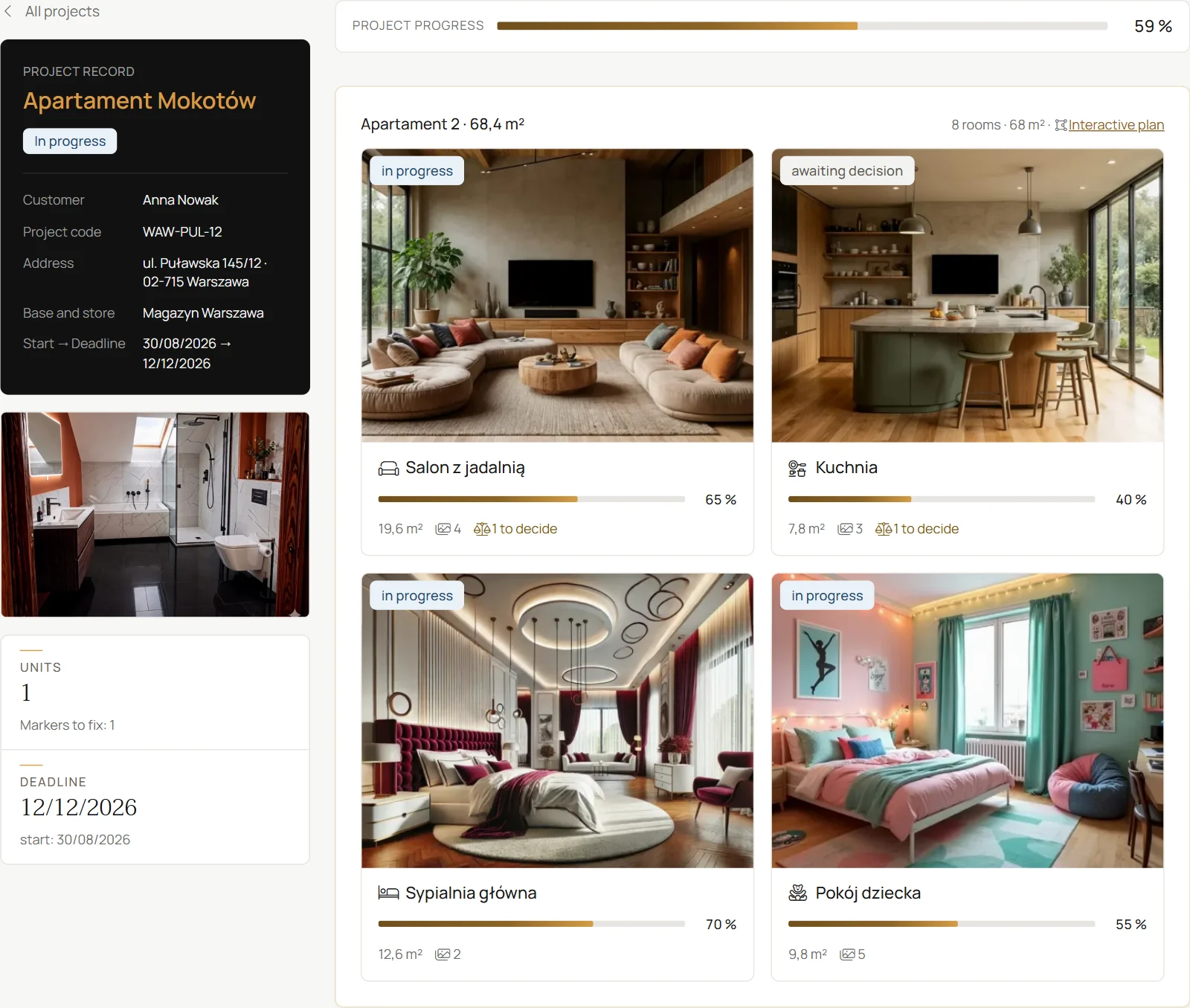
Progress of the works and where projects are
Projects in progress, nearest deadline first.
- Progress counted from rooms, with the project cover
- Number of open decisions and issues on each project
- Deadline: on schedule, due soon (14 days), overdue
- Site map: no issues, awaiting decision, open issues
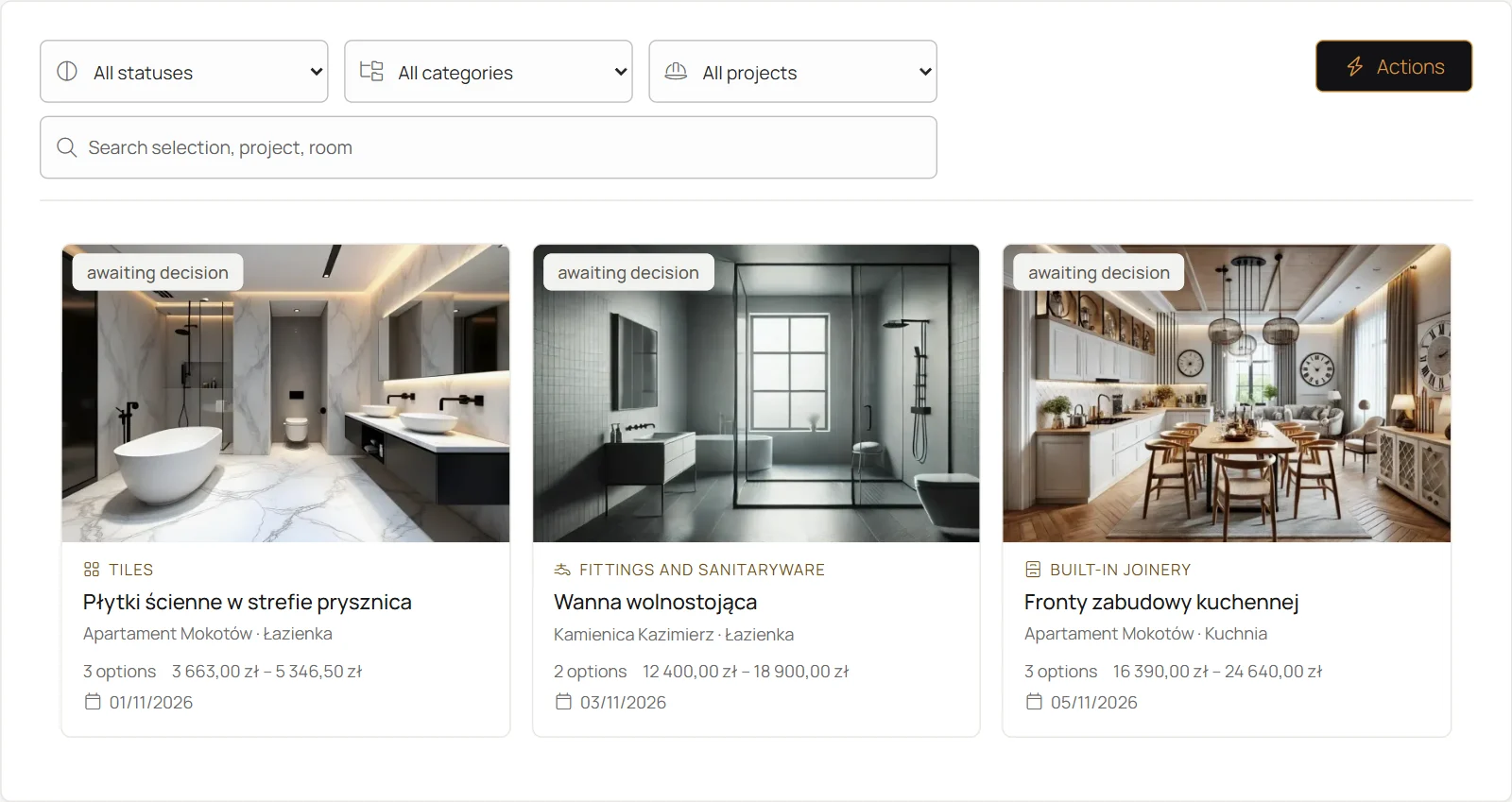
What clients approved and what you are waiting for
Selections shown to clients, without drafts.
- Chart of states: approved, awaiting decision, change requested, rejected
- Share approved over the last 14 days
- Waiting for the client: selections with the project, room and deadline
What needs a response
Lists below the map and the decisions.
- Critical tasks: blocked, overdue and high priority
- Recent activity: data changes with the name and time
- Risks and blockers: issues marked Delay or Risk of delay
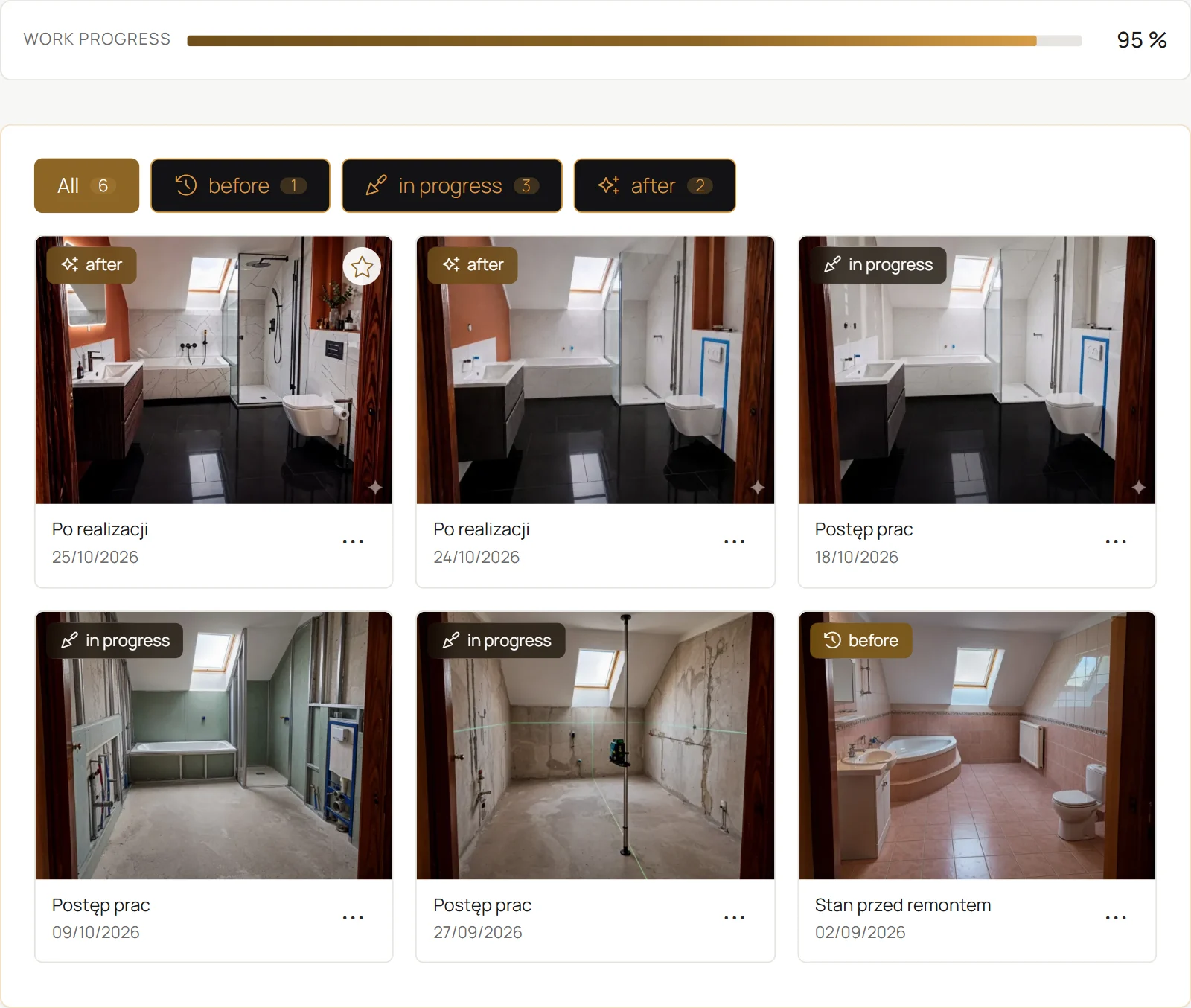
- Latest photos from the works with the room name

04Tasks step by step
- STEP 1Open the Modules menu and choose Daily dashboard in the top row.
- STEP 2Check the Awaiting decision and Open issues tiles.
- STEP 3Look through Critical tasks and Risks and blockers, then click the row that needs attention.
- STEP 1In the Waiting for the client panel, find a selection with the Overdue badge.
- STEP 2Click the row to open the selection in the decision centre.
- STEP 1In the First steps panel, click the item to fill in: an employee, a customer or a catalogue item.
- STEP 2Add one record of each. The panel disappears on its own when everything is ready.
05Actions
The most common tasks from the dashboard.
Waiting for the client
Selections awaiting a decision, with a deadline.
Risks and blockers
Issues that threaten the schedule.
Open map
All projects on the map.
Recent activity
Go to the activity log.
06What it connects to
Choose a module to see where the dashboard takes its data from.
Projects
Projects in progress, their deadlines and budgets come from projects.
Go to the topicProjectsDecision centre
Client decisions and Waiting for the client are selections from the decision centre.
Go to the topicDecision centreAttendance
The On site today tile counts confirmed attendance.
Go to the topicAttendanceProject costs
Budget use is the approved costs of projects in progress.
Go to the topicProject costs