


01What it is
The mobile version is Space on a phone. It is available to people with the Mobile access permission, which the ready-made roles Fitter, Works manager, Project manager and Owner include.
An account linked to an employee record opens Home: today's project, tasks, markers and shortcuts for work on site. An account without an employee record opens Company at a glance, which is read-only.
A phone with the permission is taken to the mobile version by itself. The choice is saved on the account, and you go back to the full application on the More tab. A phone without the permission is told to open the application on a larger screen.
- HOME
- Signing in on site, tasks, the plan, photos, issues and the timesheet.
- COMPANY AT A GLANCE
- What has changed since the last visit and what needs attention.
- GPS
- Signing in by location works within range of the project.
02What it is for
Attendance from site
The worker records arrival, breaks and the end of work on site, with the phone's location.
Tasks in your pocket
The checklist and a photo as proof of completion straight from site.
Problems reported at once
An issue with photos reaches the manager before anyone forgets it.
The company in your pocket
The owner checks the situation from the phone, away from the office.
03Main options
What you see on the phone depends on whether your account has an employee record.
A crew member's day
For an account linked to an employee record.
- Status: signed out, on site since, on a break since
- Today's project, the number of tasks and markers to do
- Shortcuts: sign in, my tasks, plan and markers, photos, report issue, timesheet

Arrival, break and end of work
The phone looks for the nearest project from today's assignment.
- Signing in by GPS only within range of the project
- A manual sign-in is shown to the manager as not confirmed by location
- Break, end of break and end of work
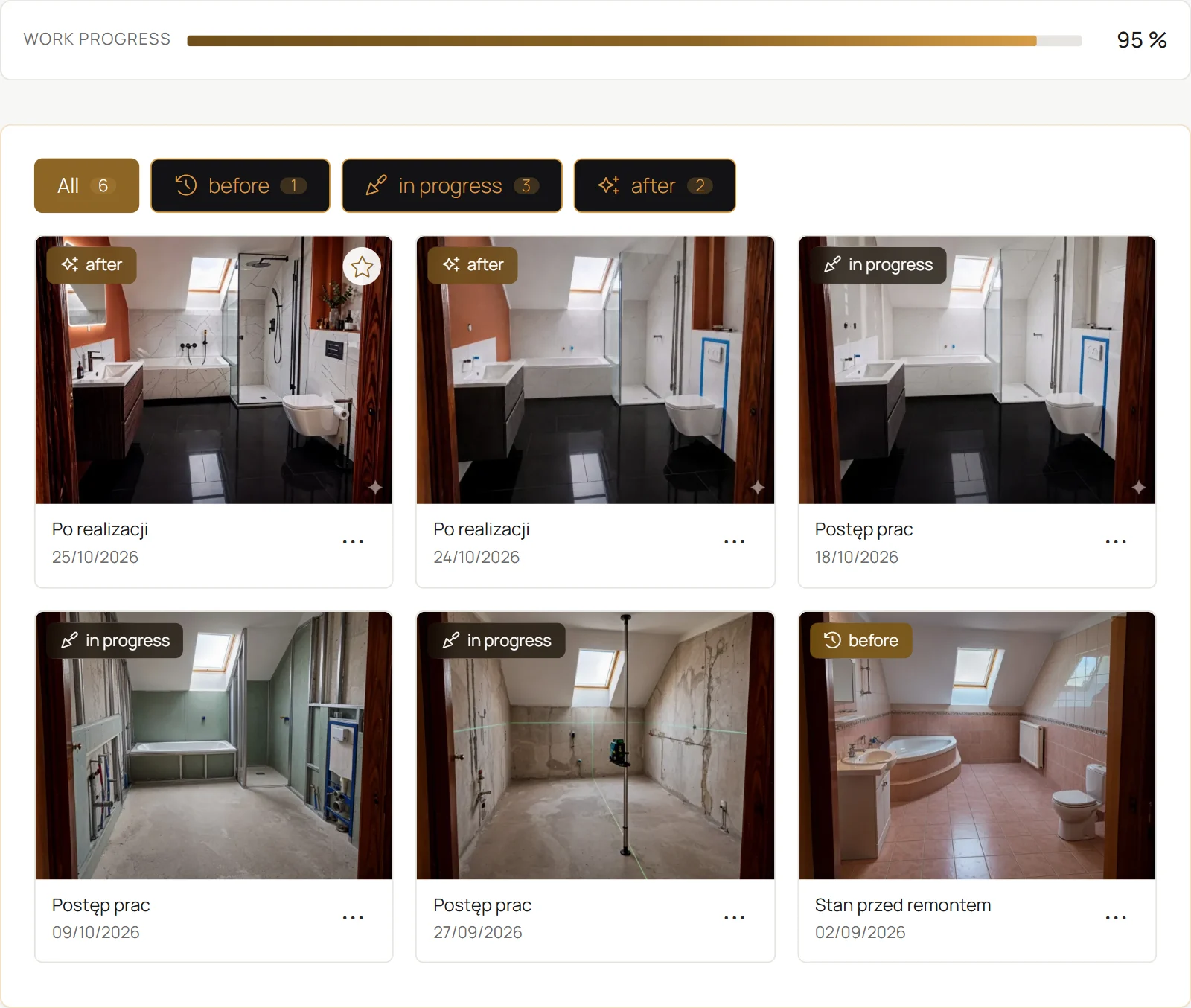
Work on site
Everything is saved in the full application straight away.
- My tasks: today, this week, all; checklist, photo, start, done, report a block
- Plan and markers: a new marker by tapping the plan, photos and submission for handover
- Report issue: place, kind, severity, a description of up to 500 characters, up to 5 photos
- Timesheet: the week with standard hours and overtime, a comment, submitting the week

Pulse and signals
Read-only, each part shown with its permission.
- Pulse since the previous visit, 14 days at most: job photos, customer decisions, portal visits, issues, finished tasks, payments in
- Jobs: overdue, due today, missing materials, time over plan, missing hours, ready for handover
- Warehouse and materials, Money: overdue receivables
- Customers: unanswered enquiries, quotes expiring within three days

04Tasks step by step
- STEP 1Open Settings › Users and the person's account.
- STEP 2Grant the Mobile access permission or apply a role template, for example Fitter, and save.
- STEP 3Link the account to an employee record in the team so the phone shows Home.
- STEP 1On Home, choose Sign in and allow location access.
- STEP 2When you are within range of the project, choose Sign in on site.
- STEP 3Without GPS, pick the project by hand. The manager sees such a sign-in as not confirmed by location.
- STEP 1Choose Report issue and set the place, kind and severity.
- STEP 2Describe the problem and take up to 5 photos.
- STEP 3Choose whom to notify and send it. The manager sees the issue at once.
- STEP 1In the mobile version, open the More tab.
- STEP 2Choose Show the full application. You return to the phone view from the account menu, Mobile version.
05Actions
The most common tasks in the mobile version.
Sign in on site
Attendance with the phone's location.
My tasks
Checklist and proof of completion.
Report issue
Description and photos straight to the manager.
Timesheet
The working week to submit.
Show the full application
Back to the full version.
06What it connects to
Choose a module to see where the crew's entries from the phone end up.
Attendance
Arrivals, breaks and departures from the phone go into attendance.
Go to the topicAttendanceTimesheets
The manager approves a submitted week in timesheets.
Go to the topicTimesheetsMarkers on plans
Markers added on the plan appear in the marker register.
Go to the topicMarkers on plans